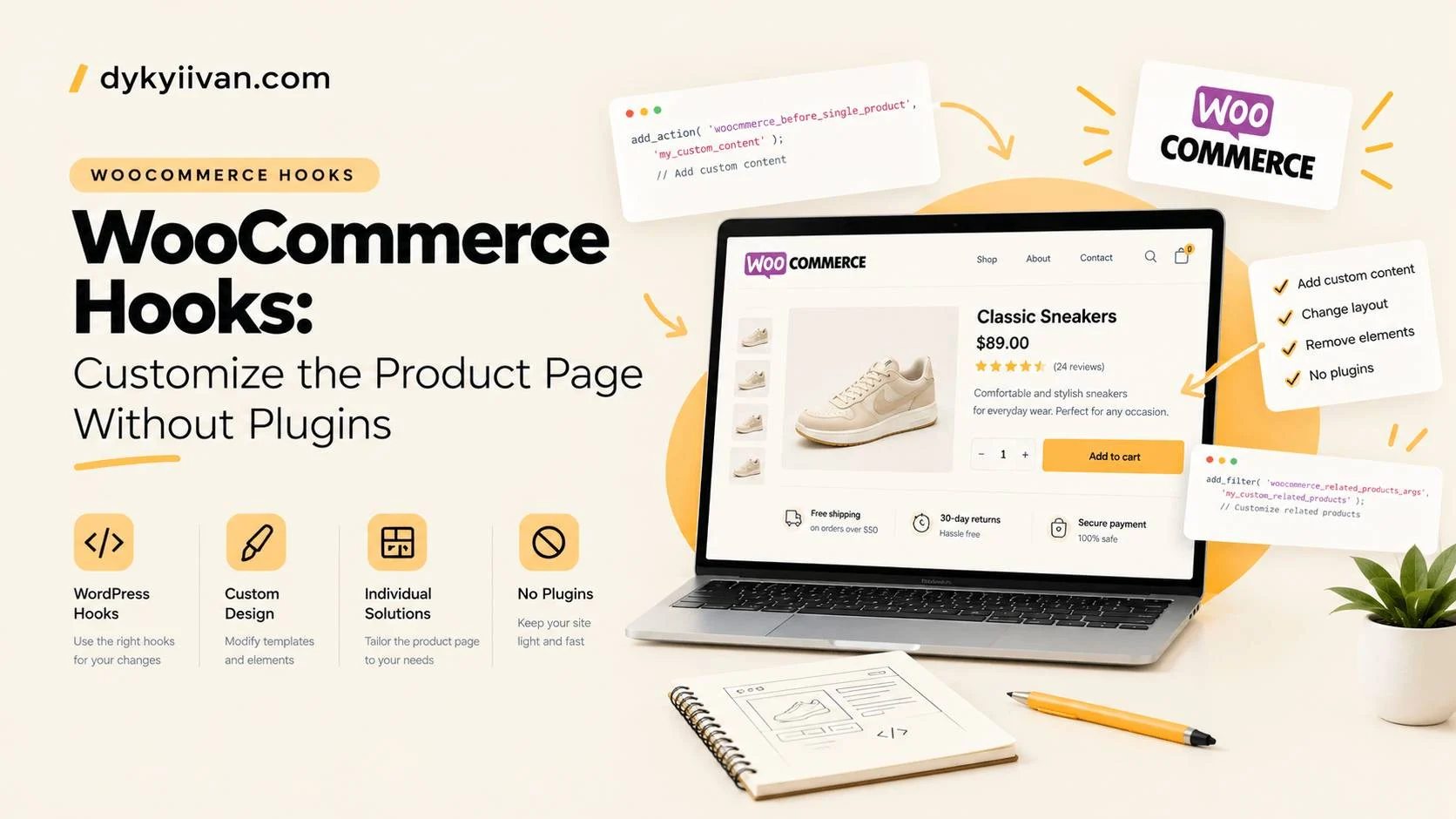
WooCommerce hooks let you change almost any part of a store without touching the plugin’s files. A client asks for “a line about delivery under the buy button” or “remove the Company field from checkout”, and the first thought is usually a plugin. Most of the time 5 to 10 lines of code are enough.
Below is what I use on real projects: how hooks work, the WooCommerce single product hooks with their priorities, the cart page and shop page hooks, the most useful filters, six working examples and a few mistakes that cost me time before.
Table of Contents
Actions and filters: what’s the difference
A hook is a spot in the code where WordPress or WooCommerce lets you step in. There are two kinds.
An action means “do something here”, for example print a block of text. It doesn’t return anything.
A filter means “here’s a value, change it and give it back”, for example the button label or the list of form fields. A filter must return the value, otherwise it disappears.
Both work the same way: add_action() or add_filter() with the hook name, your function and a priority. A lower priority number runs earlier. The default is 10.
Where to put the code
Not in the main theme and not in the WooCommerce plugin, because an update will wipe it. Three normal options:
- a child theme (
functions.php); - your own small one-file plugin;
- a snippets plugin like Code Snippets, if the code is for a single site and you don’t want to create files.
For client sites I make a separate plugin. The code doesn’t depend on the theme, so changing the theme won’t break the store.
WooCommerce single product hooks
The single product page is assembled from a few hooks. These are the ones I need most often, with what WooCommerce attaches to them by default:
| Hook | Priority | What it outputs |
|---|---|---|
woocommerce_before_single_product_summary | 10 / 20 | Sale badge / image gallery |
woocommerce_single_product_summary | 5 | Title |
woocommerce_single_product_summary | 10 | Rating, price |
woocommerce_single_product_summary | 20 | Short description |
woocommerce_single_product_summary | 30 | Add to cart button |
woocommerce_single_product_summary | 40 | SKU, categories, tags |
woocommerce_single_product_summary | 50 | Sharing hook (empty by default) |
woocommerce_after_single_product_summary | 10 / 15 / 20 | Tabs / upsells / related products |
Two more are handy: woocommerce_before_add_to_cart_button and woocommerce_after_add_to_cart_button. They sit right around the button.
Here is the same thing as a quick visual guide, in the order the page is rendered:
woocommerce_before_single_product
├─ woocommerce_before_single_product_summary
│    10 sale badge · 20 image gallery
├─ woocommerce_single_product_summary
│    5 title · 10 rating · 10 price · 20 short description
│    30 add to cart · 40 meta · 50 sharing
├─ woocommerce_after_single_product_summary
│    10 tabs · 15 upsells · 20 related products
└─ woocommerce_after_single_product
One detail people often miss. If you use a block theme and the product template is built from blocks (not the classic WooCommerce template), some of these hooks won’t fire, because blocks don’t call them. It’s easy to check: put a test echo on the hook and look at the page. If nothing shows up, either use the “Classic Template” block in the template, or change the output with the render_block filter.
Example 1. A delivery note under the button
Priority 35 sits between the button (30) and the meta (40), so the line appears right under the button.
add_action( 'woocommerce_single_product_summary', 'dd_delivery_note', 35 );

function dd_delivery_note() {
    echo '<p class="delivery-note">We ship the same day for orders placed before 3 PM.</p>';
}
If the text should differ per product, read it from a custom product field with get_post_meta() and check that it isn’t empty.
Example 2. Move a block somewhere else
By default the short description sits above the button. To show it below the meta, remove the default hook and add it again with a new priority.
add_action( 'init', 'dd_move_excerpt' );

function dd_move_excerpt() {
    remove_action( 'woocommerce_single_product_summary', 'woocommerce_template_single_excerpt', 20 );
    add_action( 'woocommerce_single_product_summary', 'woocommerce_template_single_excerpt', 45 );
}
Important: remove_action must use the same function name and the same priority as the original add_action. Otherwise nothing happens and you won’t see an error. That’s why I usually run it on init, when WooCommerce has already registered its hooks.
WooCommerce cart page hooks
The cart page has fewer hooks, but they cover everything you usually need: a message above the table, a note near the totals, something before the checkout button.
| Hook | What it outputs |
|---|---|
woocommerce_before_cart | Before the whole cart form |
woocommerce_before_cart_table | Above the product table |
woocommerce_after_cart_table | Below the product table |
woocommerce_cart_collaterals | Cross-sells and the cart totals box |
woocommerce_before_cart_totals | Above the totals |
woocommerce_proceed_to_checkout | The checkout button (priority 20) |
woocommerce_after_cart | After the whole cart |
Example 3. A note above the checkout button
add_action( 'woocommerce_proceed_to_checkout', 'dd_cart_note', 5 );

function dd_cart_note() {
    echo '<p class="cart-note">Free delivery on orders over $50.</p>';
}
The button itself is attached with priority 20, so priority 5 puts the note above it. This works with the classic cart (the shortcode). If your cart page uses the Cart block, these hooks don’t apply, so check which one you have first.
WooCommerce shop page hooks
The shop and category pages use a loop: the same set of hooks runs for every product card. Changes here affect all products in the list.
| Hook | Priority | What it outputs |
|---|---|---|
woocommerce_before_main_content | 10 / 20 | Wrapper start / breadcrumbs |
woocommerce_archive_description | 10 | Category description |
woocommerce_before_shop_loop | 20 / 30 | Result count / sorting dropdown |
woocommerce_before_shop_loop_item | 10 | Opens the product link |
woocommerce_shop_loop_item_title | 10 | Product title |
woocommerce_after_shop_loop_item_title | 5 / 10 | Rating / price |
woocommerce_after_shop_loop_item | 5 / 10 | Closes the link / Add to cart button |
woocommerce_after_shop_loop | 10 | Pagination |
Example 4. A stock note under the price in the product list
add_action( 'woocommerce_after_shop_loop_item_title', 'dd_loop_stock_note', 15 );

function dd_loop_stock_note() {
    global $product;
    if ( $product->is_in_stock() ) {
        echo '<span class="stock-note">In stock, ships today</span>';
    }
}
The price is printed at priority 10, so 15 puts the note right below it.
WooCommerce filter hooks
Filters change values: text, HTML, arrays. These are the ones I use most:
| Filter | What it changes |
|---|---|
woocommerce_get_price_html | The price HTML |
woocommerce_product_single_add_to_cart_text | Button text on the product page |
woocommerce_product_add_to_cart_text | Button text on shop and category pages |
woocommerce_product_tabs | Product tabs: add, remove, reorder |
woocommerce_checkout_fields | Checkout form fields (classic checkout) |
Example 5. Change the button text
add_filter( 'woocommerce_product_single_add_to_cart_text', 'dd_add_to_cart_text', 10, 2 );

function dd_add_to_cart_text( $text, $product ) {
    if ( $product->is_type( 'simple' ) ) {
        return 'Buy now';
    }
    return $text;
}
The 10 is the priority and the 2 is how many arguments your function accepts. Without it, $product won’t be passed in.
The same idea works for tabs. For example, to remove the Reviews tab:
add_filter( 'woocommerce_product_tabs', 'dd_remove_reviews_tab', 98 );

function dd_remove_reviews_tab( $tabs ) {
    unset( $tabs['reviews'] );
    return $tabs;
}
Example 6. Remove extra fields from checkout
Fields like “Company” and “Address 2” are often useless. The postcode too, if you ship with a courier that doesn’t need it.
add_filter( 'woocommerce_checkout_fields', 'dd_checkout_fields' );

function dd_checkout_fields( $fields ) {
    unset( $fields['billing']['billing_company'] );
    unset( $fields['billing']['billing_address_2'] );
    unset( $fields['billing']['billing_postcode'] );
    return $fields;
}
Two warnings. First, if you calculate taxes or shipping by postcode, don’t remove it. Second, this filter works for the classic checkout (the shortcode). New WooCommerce stores use the Checkout block by default, and fields there are changed differently, through the block’s own API. Open your checkout page and see which one you have before writing code.
How to find the right WooCommerce hooks
You don’t need to guess names.
- Install Query Monitor. It has a “Hooks & Actions” panel that shows which hooks fired on the current page and which functions are attached.
- Open a template file in
woocommerce/templates/and search fordo_action(. Those are all the places you can step in. - The official WooCommerce hook reference lists all of them.
Mistakes to avoid
- Code inside the WooCommerce plugin or the main theme. It disappears after an update.
- Wrong priority. If a block shows up in the wrong place, the number is almost always the reason.
echoinside a filter. A filter mustreturnthe value, not print it.- Unescaped output. If the text comes from a field or a user, use
esc_html()orwp_kses_post(). - Checking only in your own browser. A cached page can show the old version. Clear the cache and test logged out.
- Testing without a backup. A mistake in
functions.phpcan take the site down, so keep a fresh backup and be ready to remove the snippet by FTP.
Summary
WooCommerce hooks are the simplest way to change a store without extra plugins: less code, less load, fewer problems on updates. If you need changes to an existing store or a new one built from scratch, see how I build WooCommerce stores. For how block themes change the way templates work, read the Full Site Editing guide.