Full Site Editing is no longer an experiment. It is the default way WordPress builds themes, and in 2026 the question for a client project is not “does it work?” but “where does it pay off, and where does it not?”
This WordPress full site editing guide walks through what a block theme actually consists of, what has changed recently, how I structure a client project around theme.json, templates and patterns, how to keep the editor safe for non-technical people, and when a classic theme or a page builder is still the more sensible choice.
What Full Site Editing actually is
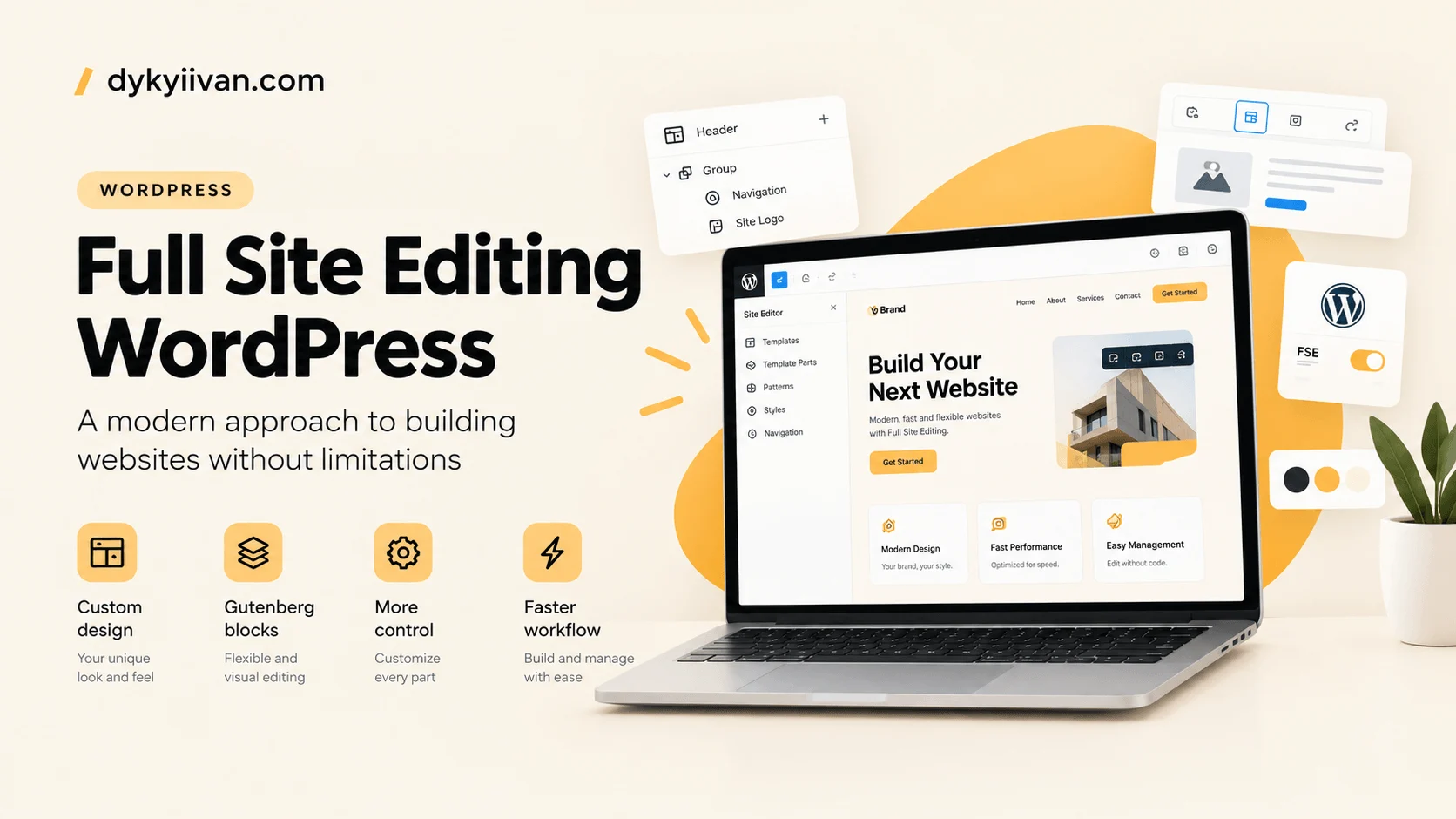
In a classic theme, the header, footer and page layouts live in PHP files that only a developer can touch. In a block theme they are made of blocks, the same blocks used to write posts. Templates and template parts can be opened and changed in the Site Editor (Appearance → Editor), and a single file, theme.json, describes colours, typography, spacing and layout.
“Full Site Editing” is the umbrella name for this whole set: block themes, the Site Editor, Global Styles, patterns and the block settings behind them. For a client it means they can adjust a header or a footer without a developer. For a developer it means the design system lives in one predictable place instead of being spread across PHP, CSS and plugin settings.
Where WordPress stands in 2026
A few facts worth knowing before you plan a project (as of October 2026):
- WordPress 7.0 was released on May 20, 2026. The current branch is 7.1, and the 7.1.3 maintenance release came out in October. WordPress 7.2 is scheduled for December 8, 2026, with a new default theme called Ipsum.
- theme.json version 3 has been the current schema since WordPress 6.6. If you still see
"version": 2in an older theme, it works, but new projects should start on version 3. - Block Bindings (since WordPress 6.5) connect block attributes to dynamic data, for example a custom field, so a paragraph, heading, image or button can show data that is stored elsewhere.
- Pattern overrides let one synced pattern keep its design while each instance changes selected text or images. According to coverage of the 7.0 release, they now work with custom blocks too, not only core ones.
- Block supports keep growing. Recent Gutenberg releases added supports to nearly every core block, so styling that used to need custom CSS can often move into
styles.blocksintheme.json.
Not everything announced for 7.0 shipped: real-time collaboration was pulled before the release. It is a good reminder to build on features that are in a stable release, not on the roadmap.
Anatomy of a block theme
A minimal block theme is smaller than most people expect:
my-theme/
├── style.css          (theme header, required)
├── theme.json         (design tokens and settings)
├── templates/         (index.html, single.html, page.html, 404.html ...)
├── parts/             (header.html, footer.html)
├── patterns/          (hero.php, pricing.php ...)
└── styles/            (optional style variations as JSON)
Templates and template parts are plain HTML files made of block markup. Patterns are PHP files with a short header comment and are registered automatically. Style variations are JSON files that override parts of theme.json, for example a dark version of the same design.
theme.json: the design system in one file
I start every block theme project here, before a single template exists. The colours, font families, font sizes, spacing scale and content width from the design are translated into theme.json, and WordPress turns them into CSS custom properties and editor controls automatically.
{
  "$schema": "https://schemas.wp.org/trunk/theme.json",
  "version": 3,
  "settings": {
    "appearanceTools": true,
    "layout": { "contentSize": "720px", "wideSize": "1200px" },
    "color": {
      "palette": [
        { "slug": "base", "name": "Base", "color": "#ffffff" },
        { "slug": "contrast", "name": "Contrast", "color": "#111827" },
        { "slug": "accent", "name": "Accent", "color": "#1d5fbf" }
      ]
    },
    "typography": {
      "fontFamilies": [
        {
          "slug": "system",
          "name": "System",
          "fontFamily": "-apple-system, BlinkMacSystemFont, 'Segoe UI', sans-serif"
        }
      ]
    }
  },
  "styles": {
    "color": {
      "background": "var(--wp--preset--color--base)",
      "text": "var(--wp--preset--color--contrast)"
    },
    "elements": {
      "link": { "color": { "text": "var(--wp--preset--color--accent)" } }
    },
    "blocks": {
      "core/button": { "border": { "radius": "6px" } }
    }
  }
}
Two details matter in practice. First, variables such as --wp--preset--color--accent are available in any custom CSS, so a rare custom component still uses the same tokens. Second, styles for specific blocks go under styles.blocks, which keeps them in the same system the editor uses, so Global Styles shows the client the same values that are on the page.
A rule I follow: if something can be expressed in theme.json, it does not go into a stylesheet. The theme stays smaller and the editor stays honest.
Templates, template parts and patterns
Templates
Each content type gets its own template: single post, page, archive, search, 404, and any custom post type that needs a distinct layout. Keep the number small. Every extra template is something to maintain and something a client may customise.
Template parts
Header and footer are template parts. They are shared across templates, so a client changes the footer once and it changes everywhere. If the site is multilingual, plan the language switcher and the menus here as well.
Patterns
Patterns are where a block theme becomes a pleasant tool for the client. Hero, feature grid, testimonials, pricing, FAQ, call to action: each is a pattern in the theme, built from core blocks and styled through theme.json. Editors assemble pages from them instead of starting from an empty canvas, which keeps pages consistent even when several people edit the site.
Use plain patterns for starting points and synced patterns for content that must stay identical everywhere, such as a global call to action. When one synced pattern needs different text in different places, pattern overrides are the right tool.
A workflow for client projects
- Design tokens first. Turn the design file’s colours, type scale and spacing into
theme.json. Agree on them with the designer before building. - Template parts. Build the header and footer, including navigation and mobile behaviour.
- Patterns for every section that appears in the design, not for every page.
- Templates for each content type, assembled from template parts and patterns.
- Dynamic content. Connect custom fields or post data through Block Bindings, and use query loops for lists of posts or products instead of hard-coded cards.
- Harden the editor (see the next section).
- Test as the client. Log in with an editor role, change a heading, add a section, swap an image. Fix whatever is confusing before handover.
- Handover and a short training. Show what can be changed safely and what to leave to the developer.
Keeping the editor safe for non-technical users
The most common worry about Full Site Editing is that a client will break the layout. It is a fair concern, and it is solvable with a few decisions made at build time:
- Lock what should not move. Block locking and content-only editing let editors change text and images without moving or deleting structural blocks.
- Limit the choices. Provide a small, curated palette and a small set of font sizes, and switch off custom colours and sizes where the design does not need them.
- Hide what you do not use. Remove core patterns the site will never use, so editors are not offered dozens of layouts that do not match the brand.
- Restrict roles. Editors usually need to edit content, not templates. Give template access only to those who need it.
- Keep backups. Customisations made in the Site Editor are stored in the database, so they must be part of your regular backups.
When Full Site Editing is the right choice, and when it is not
A good fit
- Business, service and content websites where the client wants to edit pages and sections themselves.
- Projects that need a consistent design system across many pages.
- Sites where performance matters and a lightweight, purpose-built theme is preferable to a universal one.
- WooCommerce stores that can use the block-based Cart and Checkout.
Think twice
- Large legacy sites with deep PHP templates and many plugins that depend on a classic theme. Migration is possible, but it is a project of its own.
- Teams that are already productive with a specific page builder and have no reason to change.
- Highly custom interfaces where most of the page is application logic. Here custom blocks or a bespoke PHP theme may fit better than assembling core blocks.
Being honest about this up front saves a lot of time. The right answer depends on the site, on the team that will maintain it and on how much change the client expects to make.
Performance and maintenance
A block theme does not make a site fast by itself, but it is a good starting point. Styles for core blocks are typically loaded only on pages that use those blocks, and a theme without a page builder ships far less CSS and JavaScript than a universal one. Images, fonts, third-party scripts and hosting still decide the final result, which is why it is worth reading about how to speed up WordPress and improve Core Web Vitals before launch.
After launch the theme still needs care: updates, backups and monitoring. A maintenance plan costs noticeably less than fixing a broken update after the fact.
Common mistakes
- Editing everything in the Site Editor and forgetting the code. Changes made there live in the database, not in the theme files. Decide which changes belong back in the theme, and export them when they do.
- Too many style variations and custom options. Each one is another thing to test after every update.
- Mixing a page builder into a block theme without a clear reason. You end up maintaining two systems.
- Skipping accessibility checks on custom colours and focus styles. Contrast and keyboard navigation need testing, not assumptions.
- No handover. A powerful editor without a short walkthrough is how clients end up calling a developer for a task that takes two clicks.
- Building on features that are not stable yet. Check the release notes before promising a client something from the roadmap.
FAQ
Is Full Site Editing ready for client projects in 2026?
Yes, for most business and content websites. Block themes, Global Styles, patterns and the Site Editor have been part of WordPress for several years and are actively developed. The remaining question is fit: some legacy sites and highly custom interfaces still make more sense on a classic or bespoke theme.
What is the difference between a block theme and a classic theme?
A classic theme builds its layout in PHP template files. A block theme builds it from blocks stored in HTML templates, with design settings in theme.json. In a block theme the client can edit templates, headers and footers in the Site Editor; in a classic theme that usually requires a developer.
Do I need to write code to use it?
To use an existing block theme, no. To build a custom one that matches a specific design, you need to be comfortable with theme.json, HTML templates, a little PHP for patterns and functionality, and CSS for the rare cases the tokens do not cover.
Can I use Elementor or another page builder with a block theme?
Technically yes, but it is rarely a good idea. You carry two layout systems, two sets of styles and two update paths. If the client needs visual editing, the Site Editor and patterns usually cover it without the extra layer.
Can a client break the site in the Site Editor?
They can change things, which is the point. Locking, curated options and restricted roles reduce the risk, and regular backups cover the rest.
Summary
Full Site Editing works best when it is treated as a design system rather than a visual toy: tokens in theme.json, structure in templates and template parts, flexibility in patterns, and guard rails for the editor. Built that way, a block theme gives the client real control and gives the developer a codebase that stays small and predictable.
If you are planning a custom block theme, or wondering whether your current site should move to one, tell me about the project. I will say honestly whether Full Site Editing is the right fit and what a sensible first step looks like.
Sources and further reading
- Theme.json version 3 (WordPress Core blog)
- Block Bindings API (WordPress developer documentation)
- What’s new for developers? October 2026 (WordPress Developer Blog)
- WordPress 7.0: release, new features and update guide (RAIDBOXES)