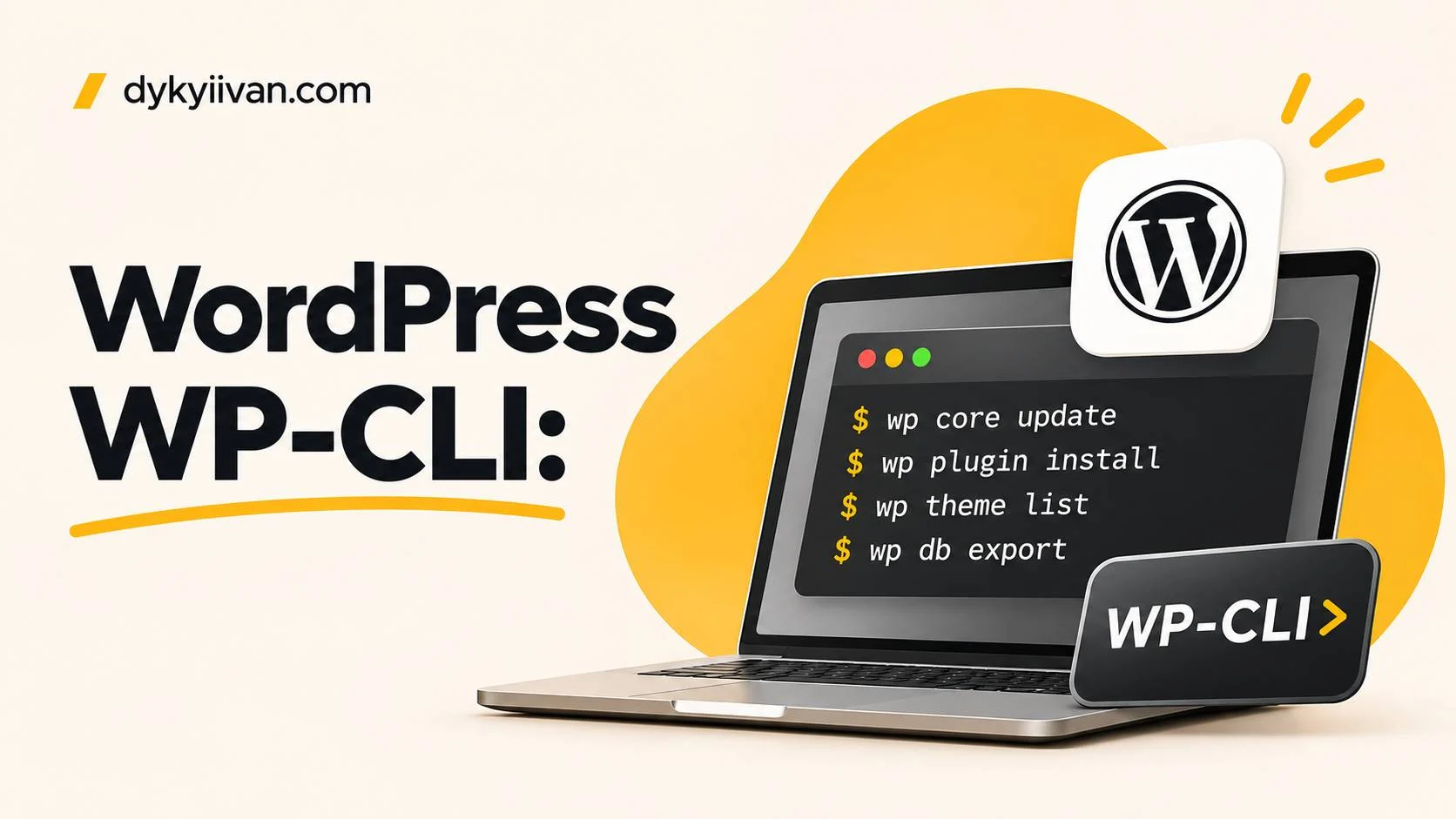
WP-CLI is the official command-line tool for WordPress. With it you can update plugins, move a site to a new domain, back up the database or create a user with a single command, without opening the admin panel. Below: what WP-CLI is, how to install it and the 10 commands I use most often. Each one can be copied from the code block and run on your own server.
Updated: November 2026. Commands checked for WP-CLI 2.x. Always make a backup before changing a live site.
What is WP-CLI
WP-CLI (WordPress Command Line Interface) is the official tool that manages a site from the terminal instead of the browser. It works directly with WordPress files and the database, so many tasks run faster and without clicking: bulk plugin updates, search and replace in the database, import and export, creating users, clearing caches.
- Speed: one command replaces dozens of clicks in the admin.
- Automation: commands can be saved in a script and run on a schedule.
- Reliability: it works even when the admin will not open because of a plugin error.
- Availability: WP-CLI is available on most quality hosts (SSH access is required).
How to install WP-CLI
If WP-CLI is not on your server yet, install it with three commands. The last command checks that everything works. Try wp --info first: many hosts already have it installed.
curl -O https://raw.githubusercontent.com/wp-cli/builds/gh-pages/phar/wp-cli.phar
chmod +x wp-cli.phar
sudo mv wp-cli.phar /usr/local/bin/wp
wp --info
Run commands in the folder that contains WordPress (where wp-config.php lives), or pass the path with --path=/path/to/site.
10 most useful WP-CLI commands
1. Update WordPress core
Check the version, update the core, and then update the database if needed.
wp core version
wp core update
wp core update-db
2. Manage plugins
List plugins with their status, install and activate in one step, update all plugins and deactivate a problematic one. The last command is a lifesaver when the admin will not open.
wp plugin list
wp plugin install woocommerce --activate
wp plugin update --all
wp plugin deactivate plugin-name
3. Manage themes
The same as plugins: list themes, activate the one you need and update them all.
wp theme list
wp theme activate twentytwentyfive
wp theme update --all
4. Search and replace in the database (search-replace)
The most useful command when moving a site to a new domain. Run it with --dry-run first: it shows how many replacements would be made but changes nothing. The --skip-columns=guid flag leaves post identifiers alone. The command handles serialized data correctly, which a plain SQL replace does not.
wp search-replace 'https://old-site.com' 'https://new-site.com' --dry-run
wp search-replace 'https://old-site.com' 'https://new-site.com' --skip-columns=guid
5. Export and import the database
A database backup in seconds. Make one before any bulk change, especially before search-replace.
wp db export backup.sql
wp db import backup.sql
6. Users
List users, create a new one with the role you need and change a password if you have lost access to the admin. Replace the password in the example with your own strong one.
wp user list
wp user create editor editor@example.com --role=editor
wp user update admin --user_pass='NewStrongPassword'
7. Clear the cache and temporary data
Flushes the object cache and deletes transients (temporary data plugins store in the database). It helps when you still see old content after changing the site.
wp cache flush
wp transient delete --all
8. Work with posts
List drafts, publish a post by ID or delete it permanently. For bulk actions, wp post commands save a lot of time.
wp post list --post_status=draft --fields=ID,post_title
wp post update 123 --post_status=publish
wp post delete 123 --force
9. Refresh permalinks
If a 404 error appears after installing a plugin or changing post types, flush the rewrite rules. It is the same as clicking Save in the permalink settings.
wp rewrite flush
wp rewrite flush --hard
10. WP-Cron events
See the scheduled tasks and run the ones that are already due. Useful when emails are not sent, scheduled posts are not published or regular WooCommerce tasks do not run.
wp cron event list
wp cron event run --due-now
Safety tips
- Always run
wp db exportbefore bulk changes and use--dry-runwhere it is available. - Do not run WP-CLI as root unless you have to. If your host requires it, add
--allow-rootdeliberately. - Do not type real passwords into the terminal history on shared servers.
- Test commands on a staging copy first, and only then on the live site.
Summary
WP-CLI speeds up everyday WordPress work: updates, backups, migrations, fixing errors. The ten commands in this article cover most tasks. You can find the rest with wp help or in the official WP-CLI documentation.
What is WP-CLI in simple terms?
It is a terminal program that lets you manage a WordPress site with commands: update plugins, back up the database, create users, move a site. Anything you can do in the admin, WP-CLI usually does faster.
Do I need SSH access for WP-CLI?
Yes, WP-CLI runs in the terminal on the server, so SSH access is required. Most VPS plans and quality hosts offer it. If you do not have it, ask your hosting support.
Is WP-CLI safe to use?
Yes, if you follow simple rules: back up before changes, use –dry-run where available and do not run commands as root without a reason. Test every new command on a copy of the site first.
How do I move WordPress to a new domain with WP-CLI?
Back up the database with wp db export, move the files and the database to the new host, then run wp search-replace from the old address to the new one, with –dry-run first. After that, flush the cache and the rewrite rules.
Does WP-CLI work on Windows?
WP-CLI officially targets Linux and macOS. On Windows it is usually run through WSL (Windows Subsystem for Linux) or on a remote server over SSH.
Can WP-CLI commands break my site?
A wrong command, such as deleting posts or running a replace without checking, can damage data. That is why you should back up and use –dry-run. With a backup, any mistake can be rolled back.
Need help with WordPress?
If you would rather not deal with the terminal yourself, I can take care of setup, migration, updates and support for your site. Describe the task and I will suggest a solution, cost and timeline. The consultation is free. You can also message me on Telegram.
Read also
- Webflow vs WordPress in 2026: How to Choose
- WooCommerce Hooks: 6 Examples for Product, Cart & Shop Pages