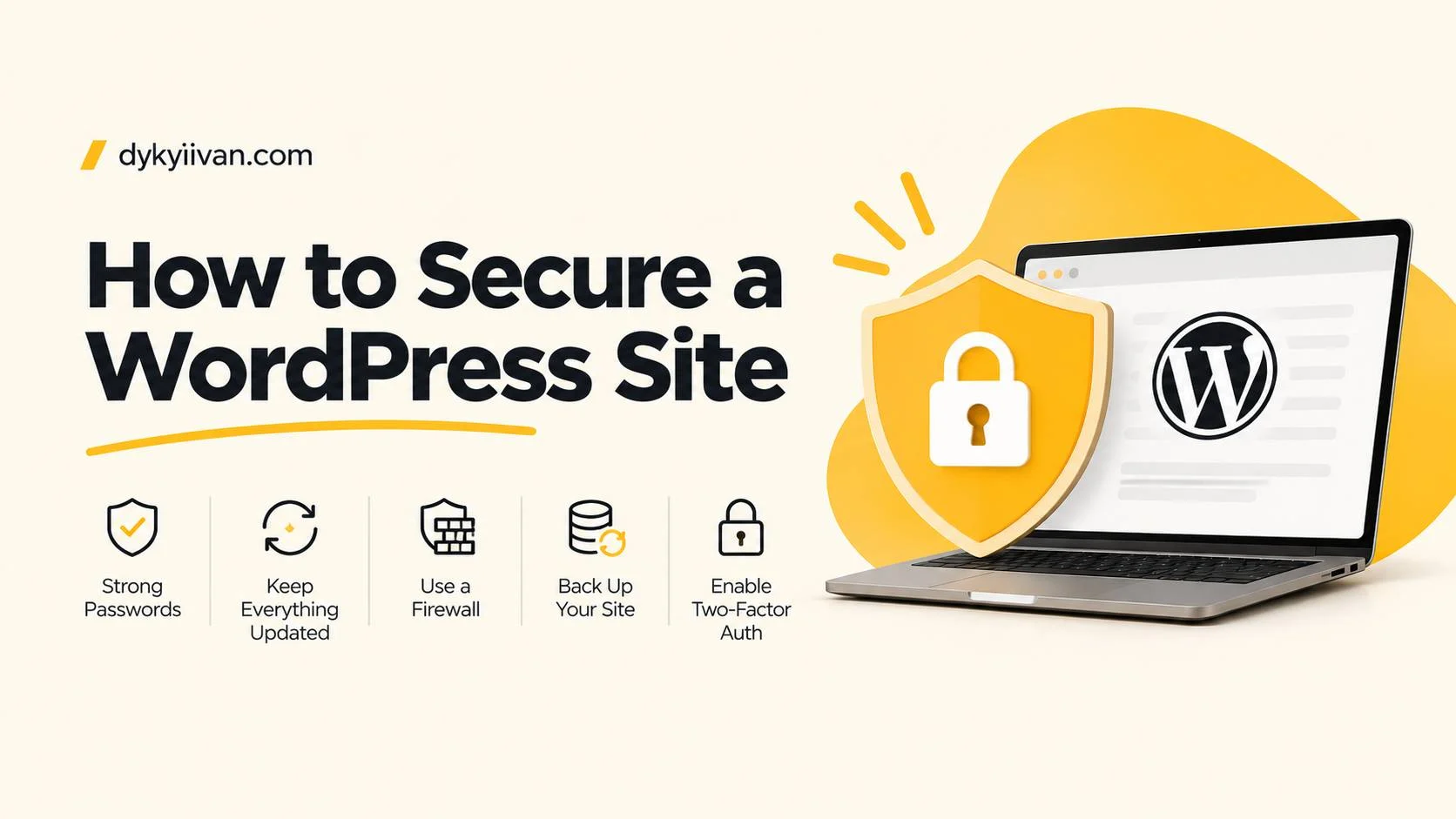
To secure a WordPress site, you need to do 12 things: keep core, plugins and themes updated, delete what you do not use, use strong passwords and two-factor authentication, make backups, enable SSL and a firewall, and restrict file permissions. Below is a step-by-step guide on how to secure a WordPress site, with commands and settings you can copy. It is a developer’s checklist, not abstract advice.
Updated: November 2026. Always make a backup before changing a live site.
Why WordPress sites get hacked
WordPress powers a large share of the web, which makes it the main target for attackers. But the WordPress core itself is rarely the weak point. Most often attackers get in through outdated plugins and themes, weak passwords, nulled (pirated) templates and poorly configured hosting. That means you can close most of the causes yourself.
How to secure a WordPress site: 12 steps
1. Keep core, plugins and themes updated
Most hacks exploit known vulnerabilities that are already fixed in a newer version. Update everything weekly, and install critical security updates immediately. With WP-CLI it takes three commands (more in the article on WP-CLI).
wp core update
wp plugin update --all
wp theme update --all
2. Remove plugins and themes you do not use
A deactivated plugin can still contain a vulnerability. Keep only what you need and delete the rest instead of just deactivating it. Choose new plugins with active updates and good reviews.
wp plugin list --status=inactive
wp plugin delete plugin-name
wp theme list --status=inactive
wp theme delete theme-name
3. Use strong passwords
A unique password of 16+ characters for the admin, database, FTP and hosting. Do not use the username admin. Store passwords in a password manager.
4. Enable two-factor authentication (2FA)
2FA protects you even if a password leaks. Turn it on for all users with administrator and editor rights. Wordfence, Two Factor or login-protection plugins will do.
5. Limit login attempts
Bots guess passwords with thousands of attempts. A login-limiting plugin (Limit Login Attempts, Wordfence) blocks an IP after several failed logins. You can also change the login URL or close wp-login.php to everyone except your IP.
6. Make regular backups
A backup saves you after any hack or mistake. Keep copies off the server (cloud, another host) and check from time to time that they can be restored. A quick database backup:
wp db export backup-$(date +%F).sql7. Enable HTTPS (SSL)
An SSL certificate encrypts data between the visitor and the site. Free Let’s Encrypt is available on most hosts. Make sure every site address opens over https:// and that http redirects to it.
8. Add a firewall and a malware scanner
A web application firewall (WAF) blocks attacks before they reach the site. It can be a plugin (Wordfence, Patchstack, Sucuri) or a DNS-level service (Cloudflare). A scanner finds suspicious files.
9. Restrict file permissions
Directories 755, files 644 and wp-config.php 600 (or 640, depending on the host). Never use 777.
find . -type d -exec chmod 755 {} \;
find . -type f -exec chmod 644 {} \;
chmod 600 wp-config.php
10. Disable file editing in the admin and force HTTPS for login
If an attacker gets into the admin, the built-in editor lets them insert malicious code. Add this to wp-config.php:
define( 'DISALLOW_FILE_EDIT', true );
define( 'FORCE_SSL_ADMIN', true );
11. Close what you do not need via .htaccess
Disable directory listing and block direct access to wp-config.php and to xmlrpc.php (if you do not need it). The example is for Apache; Nginx rules are different, so check with your host.
# Apache (.htaccess)
Options -Indexes

<Files wp-config.php>
Require all denied
</Files>

<Files xmlrpc.php>
Require all denied
</Files>
12. Monitor users and file integrity
Once a month, check who has administrator rights and remove extra accounts. A WP-CLI command compares core and plugin files with the official versions and shows what has changed.
wp user list --role=administrator --fields=ID,user_login,user_emailwp core verify-checksums
wp plugin verify-checksums --allWhat to do if your site has already been hacked
- Do not panic and do not delete anything until you have a copy of the current state.
- Change passwords: admin, database, FTP, hosting. Regenerate the security keys in
wp-config.php. - Restore the site from a clean backup or remove the malicious files (compare with
verify-checksums). - Update everything to current versions and remove the vulnerable plugin or theme that was the entry point.
- Check the site in Google Search Console for security warnings.
Summary
WordPress security is not one plugin but a set of habits: updates, backups, strong passwords, a minimum of extras and monitoring. Follow these 12 steps and the risk of a hack drops sharply. If you would rather not do it yourself, I can take care of security setup and site maintenance for you.
How do I secure a WordPress site?
Keep core, plugins and themes updated, delete unused plugins, use strong passwords and two-factor authentication, make backups, enable SSL and a firewall, and restrict file permissions.
Do I need a security plugin for WordPress?
It is recommended. A plugin with a firewall and a scanner (Wordfence, Patchstack, Sucuri) blocks most common attacks. But a plugin does not replace updates, backups and strong passwords.
How can I tell that my WordPress site was hacked?
Signs: unknown administrator users, redirects to other sites, extra pages or spam in Google results, a sudden drop in speed, warnings in Search Console. Check the files with the wp core verify-checksums command.
How often should I back up my site?
For a site that rarely changes, once a week is enough; for a store or an active blog, daily. Keep copies off the server and test restoring them.
Is it safe to use nulled themes and plugins?
No. Nulled copies of paid themes and plugins often contain hidden malicious code. It is one of the most common causes of hacks. Buy licenses or use free ones from the official directory.
How much does WordPress security setup cost?
The price depends on the scope: an audit, firewall setup, backups and monitoring. I give the exact amount after reviewing the site.
Need help securing your site?
I can set up security, backups and maintenance for your WordPress site. Describe the task and I will suggest a solution, cost and timeline. The consultation is free. You can also message me on Telegram.