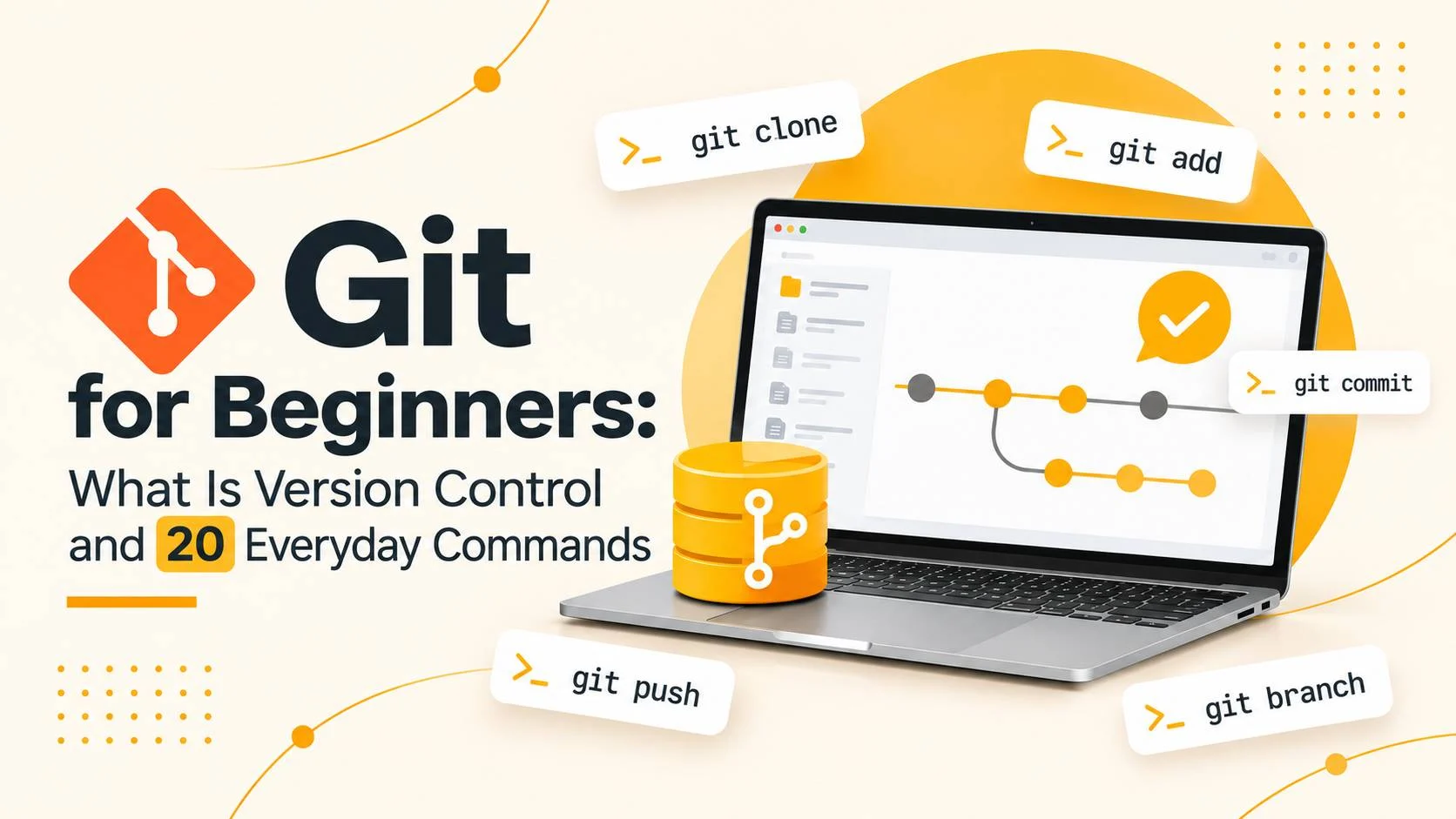
Git is a version control system: it keeps the history of changes in a project and lets you return to a working state at any time. A WordPress developer needs Git to change a theme or plugin safely, work on several tasks at once and not be afraid of breaking the site. Below: what Git is and the 20 Git commands I use every day. Each one can be copied from the code block.
Updated: November 2026. Commands checked for Git 2.x.
What is Git and version control
Version control is a way of recording every change to files: who changed what and when. Git does this locally on your computer, while services like GitHub, GitLab or Bitbucket keep a copy in the cloud and make teamwork possible.
- Repository: the project folder with the whole history of changes.
- Commit: a saved snapshot of changes with a short description.
- Branch: a separate line of development, so you can try new things without touching the working version.
- Remote repository: a copy of the project on a server (GitHub, GitLab) that you can pull from and push to.
Why use Git in WordPress projects
- Safe experiments with a theme or plugin: if something breaks, you go back to the previous commit.
- Several tasks in parallel in separate branches, without confusion.
- A history of changes: you can see when and why something changed.
- Deployment and teamwork: several developers work on the same code.
Commit the code of the theme and plugins, not the whole site. Uploads, cache and wp-config.php with database passwords must not end up in the repository. That is what the .gitignore file is for (example below).
20 essential Git commands
Set up Git (command 1)
Once on your computer, set your name and e-mail (they go into the commit history) and the default branch name main.
git config --global user.name "Your Name"
git config --global user.email "you@example.com"
git config --global init.defaultBranch main
Getting started (commands 2–3)
git init creates a new repository in the current folder, git clone downloads an existing project from a remote server.
git init
git clone https://github.com/user/repo.git
Everyday work (commands 4–8)
The main cycle: see what changed (status, diff), stage files for the next commit (add), save the changes (commit) and review the history (log). Keep commit messages short and to the point: say what was done.
git status
git add .
git add style.css
git commit -m "Add header menu styles"
git diff
git log --oneline
Branches (commands 9–11)
Create a separate branch for each task. git branch lists branches, git switch moves between them (with -c it creates a new one), git merge merges a finished branch into the current one.
git branch
git switch -c feature/new-header
git switch main
git merge feature/new-header
Remote repository (commands 12–15)
git remote -v shows connected servers, git fetch downloads changes without merging, git pull downloads and merges, git push sends your commits to the server.
git remote -v
git fetch
git pull
git push -u origin main
Undoing changes (commands 16–19)
Git lets you roll back a mistake safely. restore discards changes in a file, stash temporarily hides uncommitted changes, revert creates a new commit that undoes a previous one (safe for shared history), reset --soft undoes the last commit while keeping the changes in your files. Avoid git reset --hard until you understand that it permanently deletes unsaved changes.
git restore style.css
git restore --staged style.css
git stash
git stash pop
git revert HEAD
git reset --soft HEAD~1
Tags for releases (command 20)
A tag marks a specific commit as a version, for example a theme or plugin release.
git tag v1.0.0
git push origin v1.0.0
.gitignore for WordPress
The .gitignore file in the repository root tells Git what not to track. In a WordPress project, do not commit the config with passwords, uploads, cache and dependencies.
# WordPress: secrets and service files
wp-config.php
.env
wp-content/uploads/
wp-content/cache/
node_modules/
vendor/
.DS_Store
*.log
Summary
Git is a basic developer tool: it gives you safety, history and order in a project. These Git commands cover everyday work: cloning, committing, branching and undoing changes. You can find the rest with git help or in the official Git documentation. If you also work with a server, read about WP-CLI too.
What is Git in simple terms?
Git is a program that remembers all the changes in your project files. You can look at the history, return to any version and work on several tasks separately without breaking the main version.
What is the difference between Git and GitHub?
Git is the version control program on your computer. GitHub is an online service where Git repositories are stored and where teamwork is convenient. There are alternatives such as GitLab and Bitbucket.
Do I need Git for WordPress development?
It is not mandatory, but highly recommended. Git protects you from losing changes in a theme or plugin, lets you roll back a mistake and work in a team. For professional projects it is the standard.
What should not be committed in a WordPress project?
Do not commit wp-config.php with database passwords, keys and tokens, uploads, cache and dependency folders (node_modules, vendor). Add them to .gitignore.
What is the difference between git pull and git fetch?
git fetch only downloads changes from the server without touching your files. git pull downloads the changes and immediately merges them into your current branch.
How do I undo the last commit?
If the commit has not been pushed yet, use git reset –soft HEAD~1: the commit is undone and the changes stay in your files. If the commit is already on the server, git revert HEAD is safer because it creates a new commit that undoes the previous one.
Need help with a WordPress project?
If you want to order a site or set up a workflow with Git and deployment, describe the task and I will suggest a solution, cost and timeline. The consultation is free. You can also message me on Telegram.